Documentation Index
Fetch the complete documentation index at: https://next-fast-turbo.mintlify.app/llms.txt
Use this file to discover all available pages before exploring further.
Introduction
Deploying your monorepo to Vercel is relatively straightforward, but there are a handful of things to be aware of. The frontend deployment is relatively straightforward, but the backend deployment can be a little more complex and need a bit more attention.For a more detailed guide on deploying a monorepo to Vercel, see the official documentation.
Prerequisites
Before continuing, ensure you have:- A Vercel account. It is typically easiest to sign up with your GitHub account, as we’ll also be deploying directly from the GitHub repository.
- Published your repo to GitHub. If you haven’t done this yet, you can follow the instructions here.
- Optional. If you’re planning to deploy your documentation site to Mintlify, you’ll need to have a Mintlify account.
Frontend Deployment
Add new project in Vercel
Go to your Vercel dashboard and click the
Add New... button, and select Project.Import your monorepo
Select the
Import Git Repository option and select your repository from the list of repositories.Configure Project
Vercel will automatically detect that you have a monorepo, and should have correctly populated all the required fields.The project root directory should be automatically detected, but if it isn’t, you can manually set it to the folder where your frontend is stored. In this project, that is 
apps/web.Add an Ignored Build Step
We don’t want to continuously rebuild our frontend every time we push changes to the backend or documentation. To prevent this, we can add an ignored build step.
From the newly deployed frontend dashboard, navigate to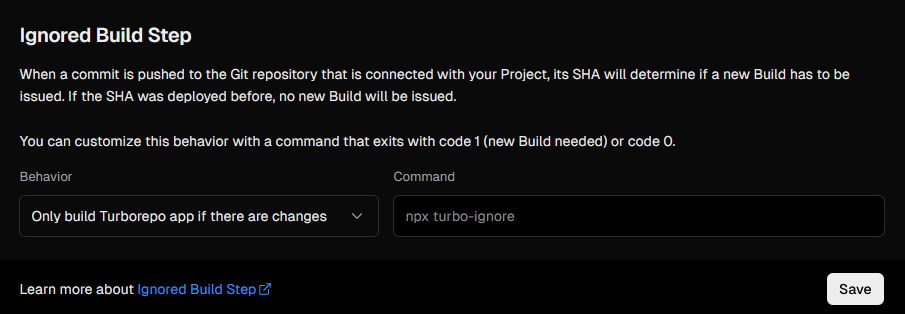
From the newly deployed frontend dashboard, navigate to
Settings, then to Git. Scroll down to the Ignored Build Step section and set the behaviour to
Only build Turborepo app if there are changes.For more information, see the official documentation.
Backend deployment
Add new project in Vercel
Go to your Vercel dashboard and click the
Add New... button, and select Project.Import your monorepo
Select the
Import Git Repository option and select your repository from the list of repositories.Configure Project
Vercel will automatically detect that you have a monorepo, but for the backend we need to change the default configuration.
- Configure your project name
- Change the
Framework PresettoOther(there is currently no Python option) - Change the
Root Directoryto the folder where your backend is stored. In this project, that isapps/api - Add your Environment Variables
Deploy
Click the 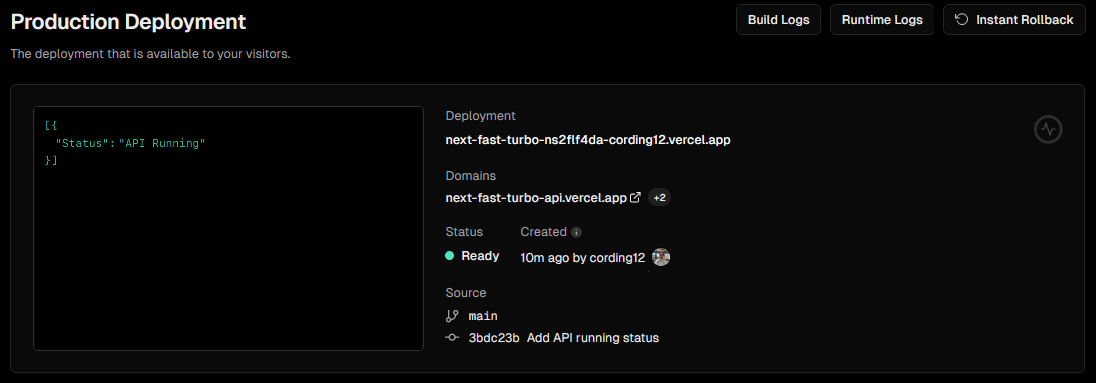
Deploy button to deploy your project. Once built, the API should be running at the URL provided.Add an Ignored Build Step
We don’t want to continuously rebuild our frontend every time we push changes to the backend or documentation. To prevent this, we can add an ignored build step.
From the newly deployed frontend dashboard, navigate to
From the newly deployed frontend dashboard, navigate to
Settings, then to Git. Scroll down to the Ignored Build Step section and set the behaviour to
Only build Turborepo app if there are changes.For more information, see the official documentation.
Documentation deployment
For a more detailed explanation, visit the offical documentation
Sign in to Mintlify
Sign in to Mintlify. You will further be prompted to Sign in with GitHub. Follow the onscreen instructions.
Select Monorepo
Configure your deployment to be pointed to your 
docs directory. Ensure set up as a monorepo is selected.